

Simple
100% Non-Technical Setup
Connect your accounts in a few clicks, with built-in how-to guides beside every field.
Six simple steps from sign-up to a fully migrated Zoom Revenue Accelerator no technical setup required.
Create your account, lock in lifetime migration validity, connect Gong and Zoom, test with a free 100-recording sample, then launch the full background migration.

Simple
Connect your accounts in a few clicks, with built-in how-to guides beside every field.
Flexible
Once approved and paid, your migration license never expires. Run it when your team is ready.
Risk-free
Validate video, transcripts, speakers, comments and AI summaries before the full transfer.
Hands-off
Log out or close your browser — ZipZap keeps working and emails you when it is done.
Scroll down. The real ZipZap screen on the right highlights exactly where to click at every step.
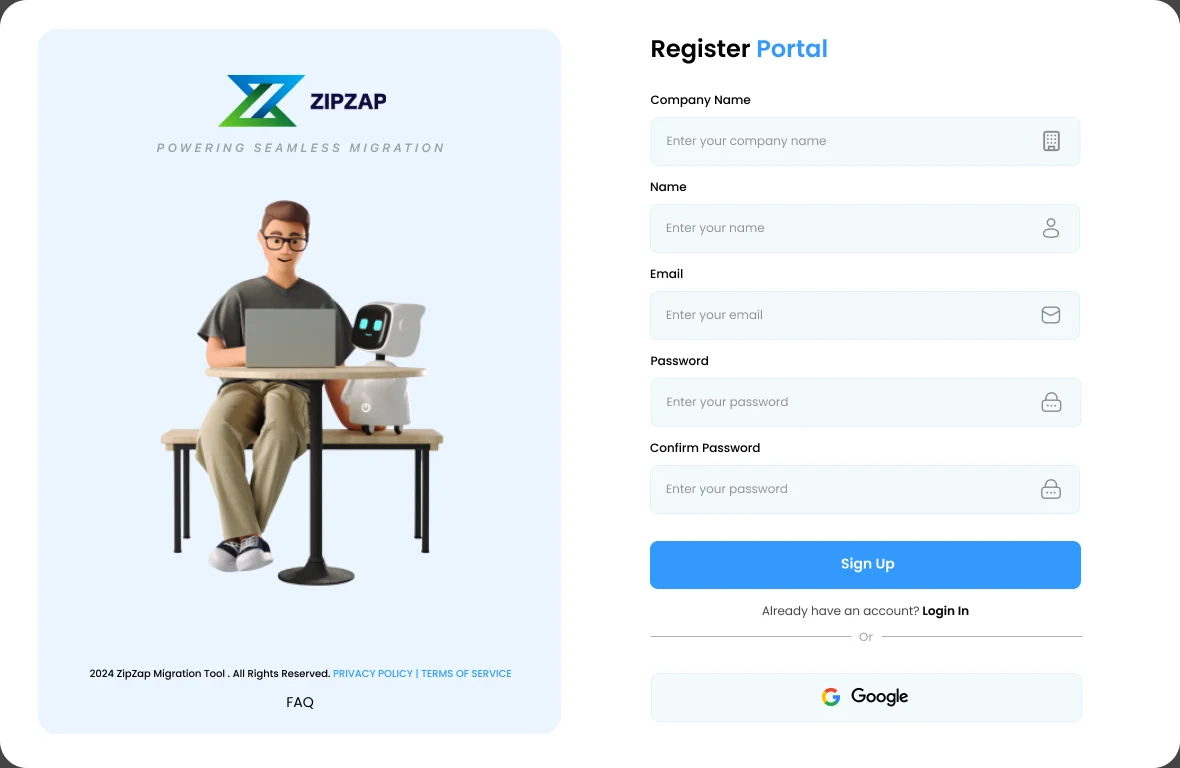
1Sign up
Register on the ZipZap portal in under a minute.
 Enter your company name, name, work email and a password
Click Sign Up, or continue with
Google instead
Open the email we send and click Verify
Email, then log in
Tip: the verification link works for 24 hours. If it expires, request a new one from the verification screen.
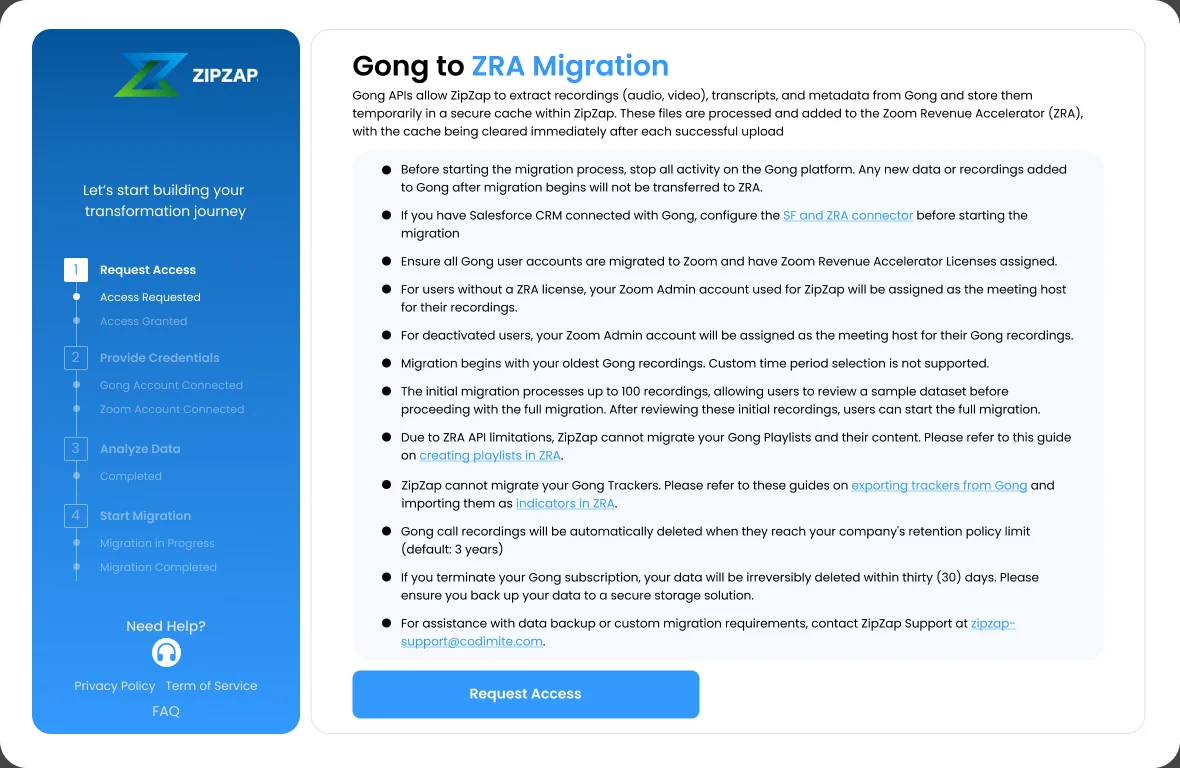
2Get access
Open Gong to ZRA Migration and read the key notes first.
Choose Gong to ZRA, then read the key
notesClick Request Access; the ZipZap team
reviews itApproval may take up to 24 hours. Once approved, click
Proceed to Setup
Once paid, your migration license never expires
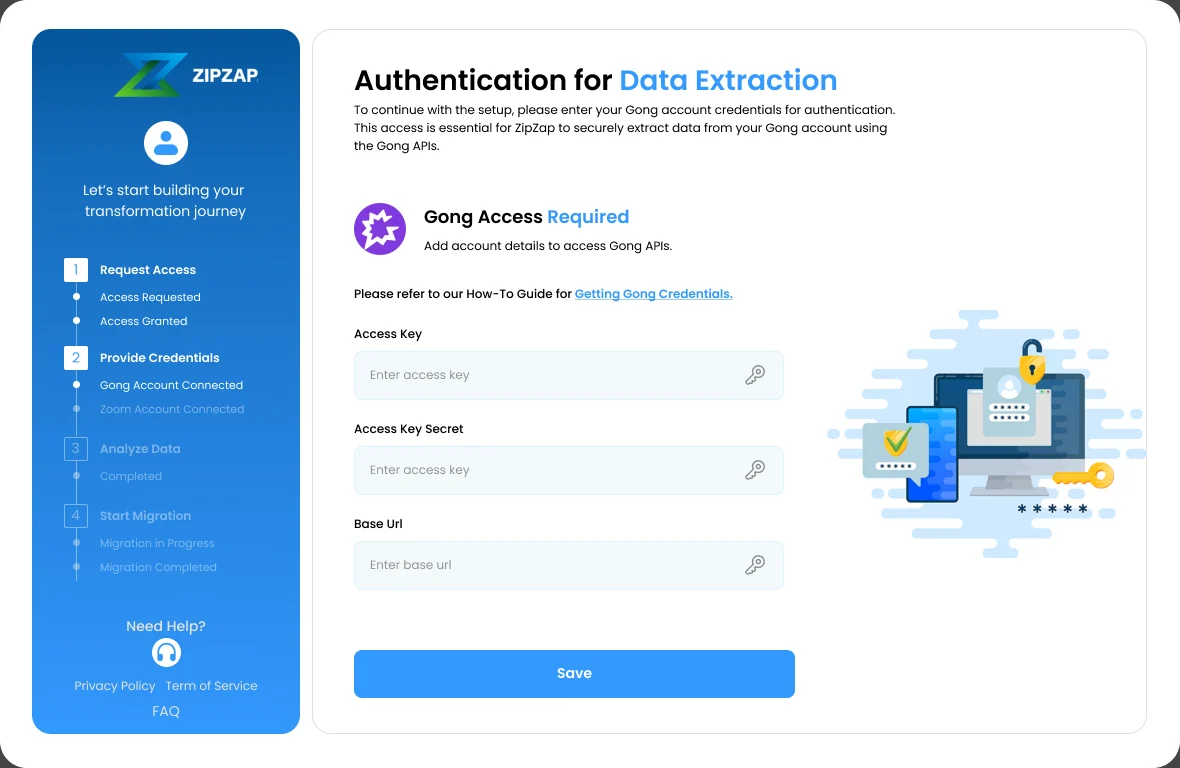
3Connect
Add your Gong credentials, then your Zoom credentials.
Paste your Gong Access Key, Access
Key Secret and Base URLClick SaveRepeat for Zoom with your Account ID,
Client ID and Client Secret
Secure: credentials are encrypted with GCP Secret Manager. Stuck? The screen links to a how-to guide for finding them.
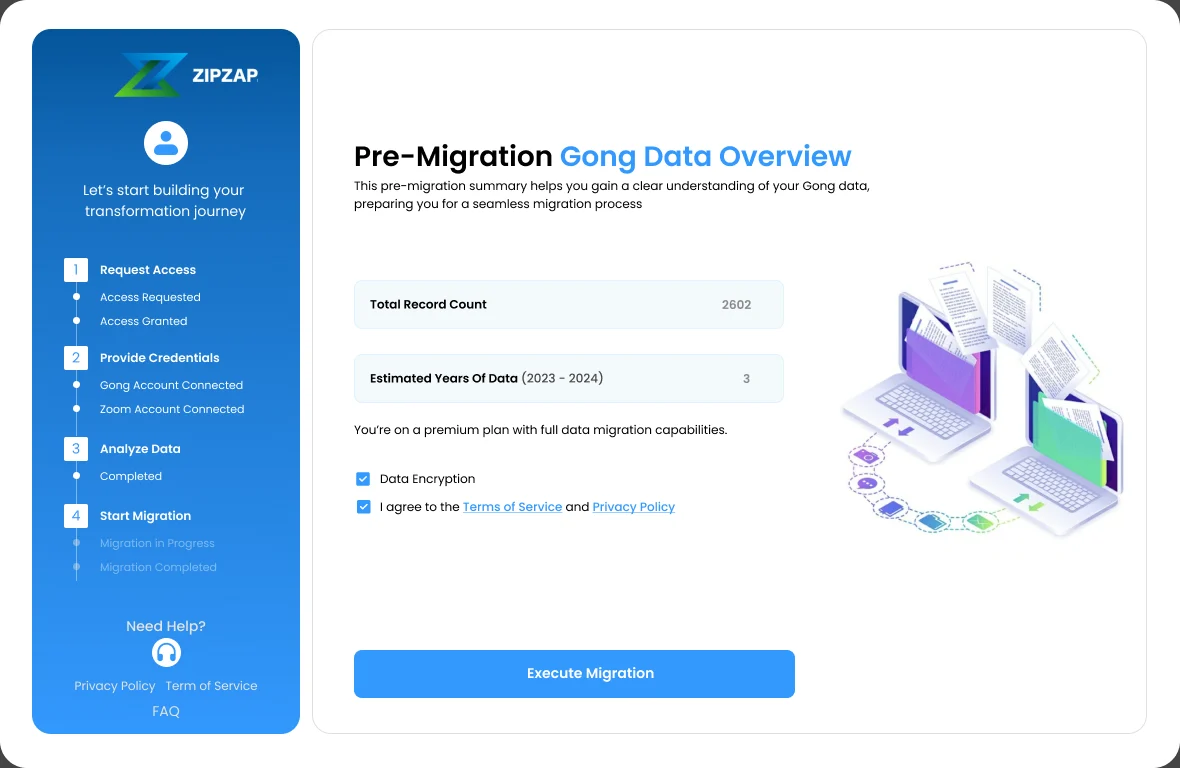
4Analyze
ZipZap shows you exactly what is about to move.
Review the total record count and the
estimated years of dataKeep Data Encryption on and accept the
Terms of Service and Privacy PolicyClick Execute Migration when you are ready
Nothing moves yet. The next step is a small free test batch.
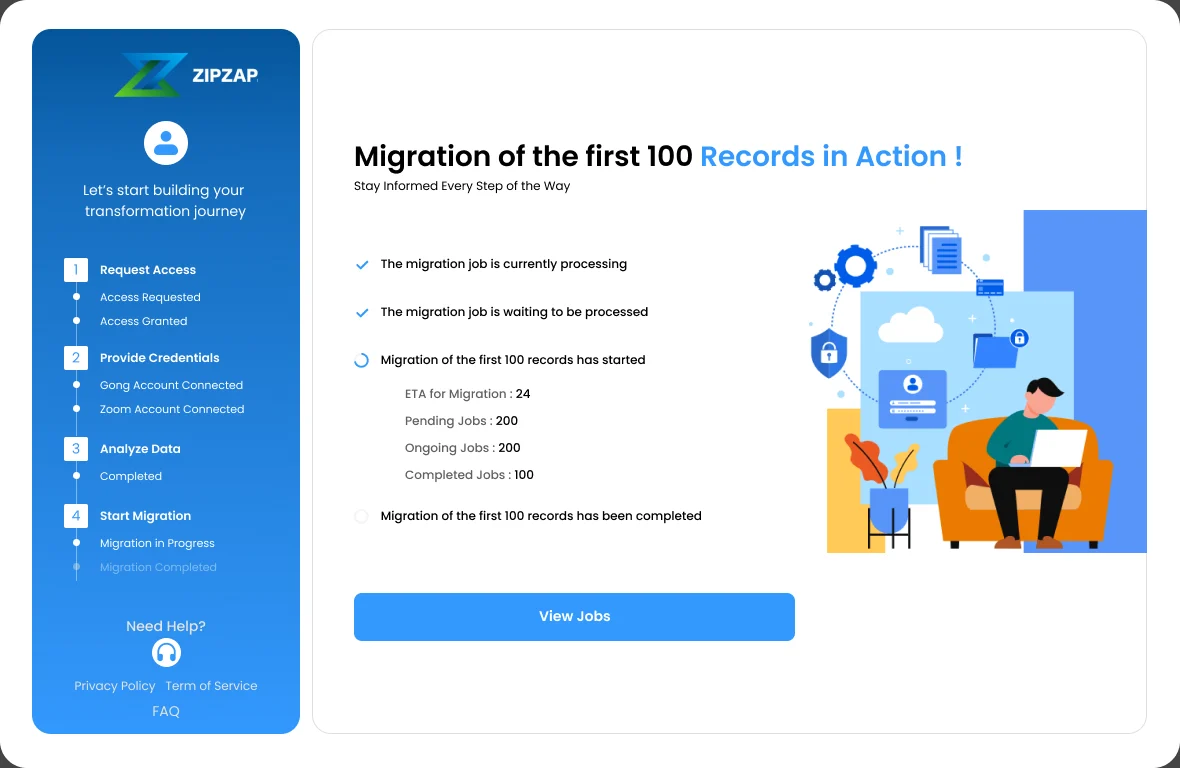
5Test 100
Check real results in Zoom before you commit.
Watch pending and migrated records update liveWait for the progress bar to reach 100%Click View Jobs, then check the recordings
in ZoomFree · no commitment
6Migrate
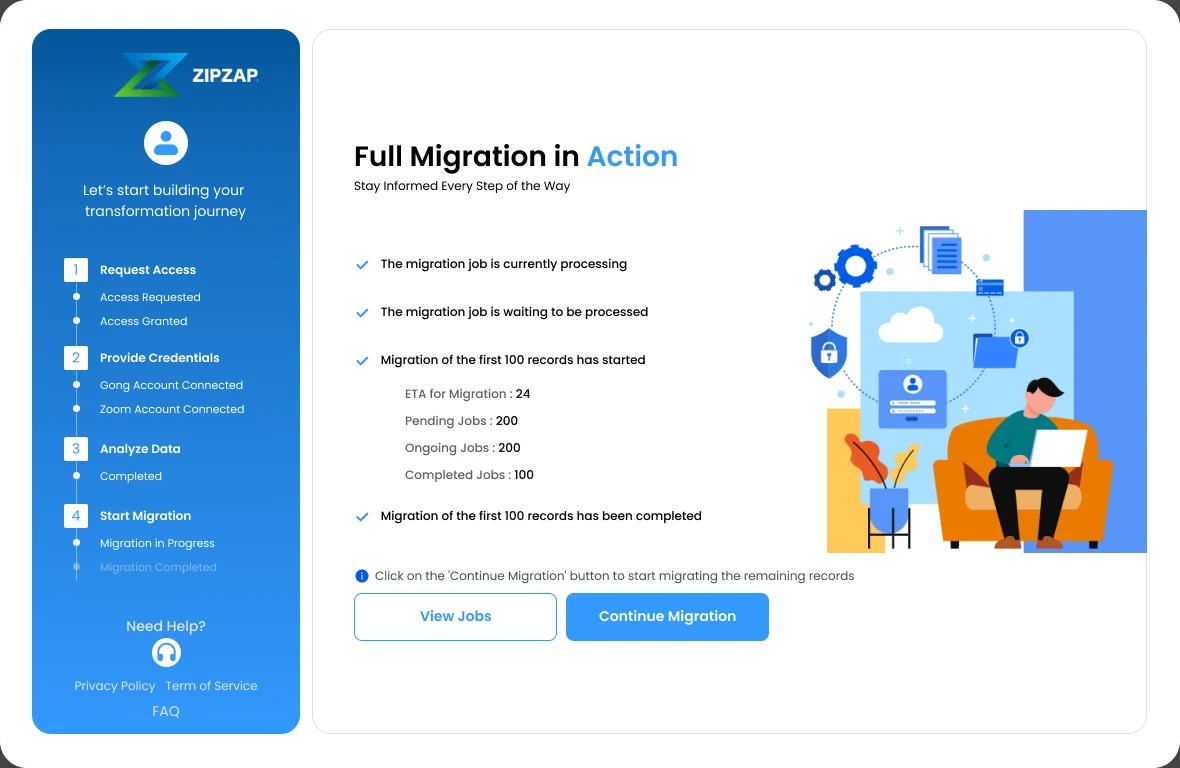
Happy with the test? Start the full run and carry on with your day.
Click Continue Migration to move the
remaining recordsTrack every 100-record job in Job History
Close the tab if you like; we email you when it is complete
Done? Leave quick feedback from the dashboard and tell us how it went.
Share your migration experience, star ratings or product suggestions anytime using the Send Feedback button.
Click Help in the application to submit questions about setup, access or technical issues. The ZipZap support team responds within 24 hours.